How to Schedule WhatsApp Messages on Android
WhatsApp has no built-in scheduler, but you still have real options on Android — from calendar reminders to WhatsApp Business tools to dedicated scheduling apps. Here's an honest look at each.
Published July 16, 2026
You typed the message at 11 pm. Sending it now feels wrong — it's a birthday wish for tomorrow, a payment reminder for Monday morning, or a follow-up that should land during business hours. So you leave it in the chat box, set a mental note, and hope you remember.
WhatsApp does not include a built-in way to schedule a message for later. There is no "send at" button in a regular chat, on Android or anywhere else. That gap is why this question comes up so often — and why the answers people find are often vague or oversold.
This guide walks through the real options, including their limitations, so you can pick what fits how you actually use WhatsApp.
Who runs into this
A few situations come up again and again:
- Time zones. You're awake when the recipient isn't. Sending at 2 am their time buries your message under everything that arrives by morning.
- Recurring obligations. Weekly team check-ins, monthly rent or payment reminders, daily status updates to a group.
- Small business follow-ups. Appointment confirmations, "your order is ready" messages, and re-engagement notes that should go out at a considerate hour.
- Personal dates. Birthdays and anniversaries you want to acknowledge at midnight or first thing in the morning — not whenever you happen to remember.
If none of these apply to you more than once in a while, a simple reminder may honestly be all you need. Let's start there.
Option 1: A calendar or reminder app
The lowest-friction approach is to not schedule the message at all — schedule a reminder to send it.
- Draft your message in WhatsApp and leave it in the chat box, or keep it in a note.
- Create an event or reminder in Google Calendar (or any reminder app) for the exact send time.
- When the notification fires, open the chat and press send.
Why it's good: zero new apps, zero permissions, and nothing sends without you seeing it. It's also the only approach here that works identically on every platform.
Where it falls short: it depends entirely on you being available and paying attention when the reminder fires. It doesn't help with recurring messages at scale, and a reminder you swipe away at a bad moment is a message that never goes out.
Option 2: WhatsApp Business built-in tools
If you use WhatsApp Business, it ships with automation features — but it's worth being precise about what they do, because none of them schedule an outbound message for a specific time:
- Away messages auto-reply to people who message you during hours you define. They're triggered by incoming messages, not by the clock.
- Greeting messages auto-reply to new contacts the first time they reach out.
- Quick replies let you save message templates and insert them with a few keystrokes — a real time-saver for repeated answers, but you still send manually.
- Labels help you organize chats (say, "needs follow-up") so you can find them later.
These are genuinely useful for handling inbound volume. If your actual need is "reply faster and stay organized," WhatsApp Business alone may cover it. If your need is "this exact message goes out Tuesday at 9 am," these tools don't do that.
Option 3: A dedicated scheduling app
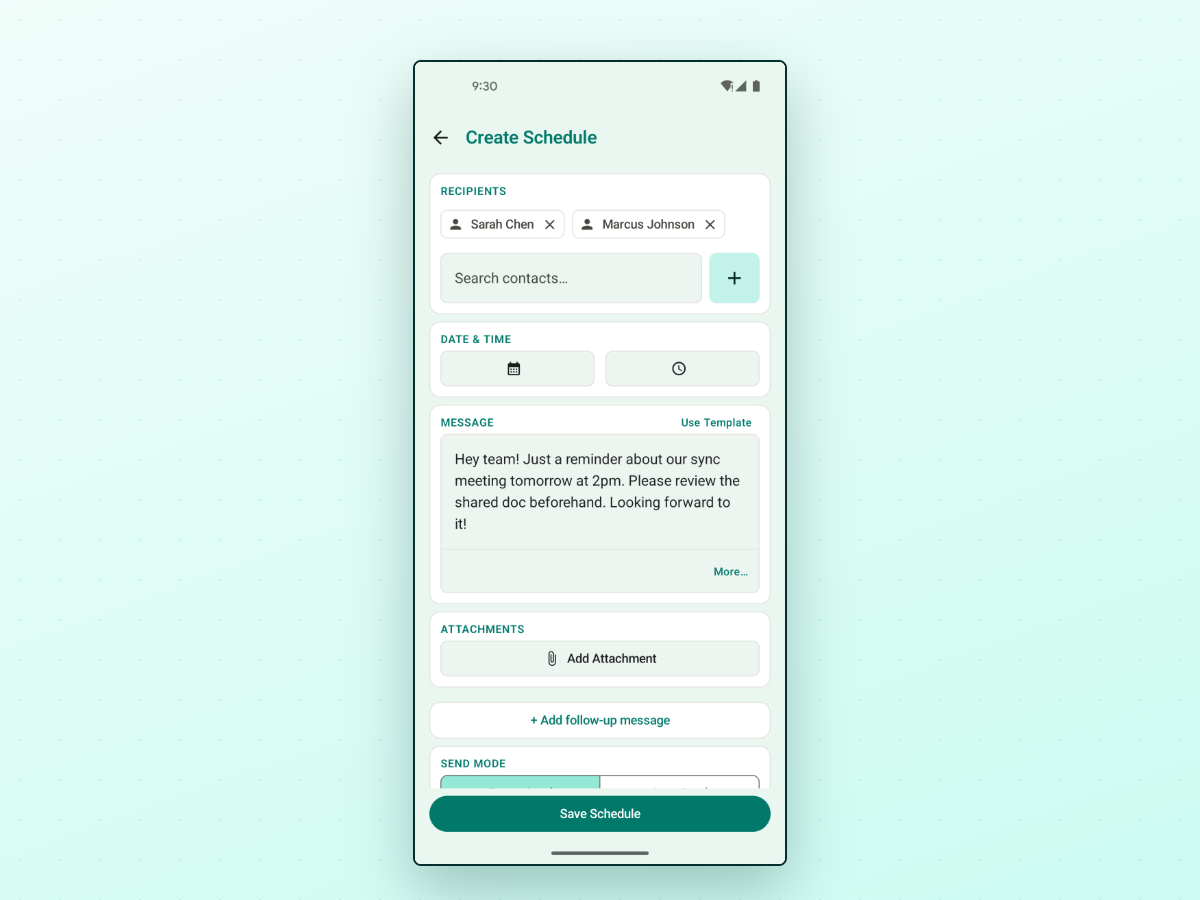
Because WhatsApp offers no scheduling hook, Android scheduling apps work by automating the send on your device: at the scheduled time, the app opens WhatsApp and completes the send using Android's accessibility service. That's true of this whole category of apps, and it has honest consequences you should know before installing any of them:
- Accessibility access is required. Android's accessibility service is the mechanism that lets one app operate another. Granting it is a real trust decision — only do it for an app whose privacy posture you've actually looked at.
- Battery settings can interfere. Some Android manufacturers aggressively restrict background apps, and a scheduler that gets killed overnight can't send your 8 am message. On some devices you'll need to exempt the app from battery optimization.
- Your phone has to be on and able to run the app at send time.
Within this category, the meaningful differences are reliability, whether recurring schedules are supported, and how much control you keep over each send. PlannedPing is one option built for this workflow: it supports both WhatsApp and WhatsApp Business, handles one-time and recurring schedules — hourly, daily, weekly, monthly, or yearly, with intervals (say, every 2 weeks), specific weekdays for weekly repeats, and an end condition (never, after a set number of sends, or on a date) — and lets you choose between auto-send and a manual mode where you review and confirm each message before it goes out. It's local-first — no account or login, with your schedules stored on your device — and it walks you through the accessibility and battery setup steps above rather than pretending they don't exist.
Message templates you can copy
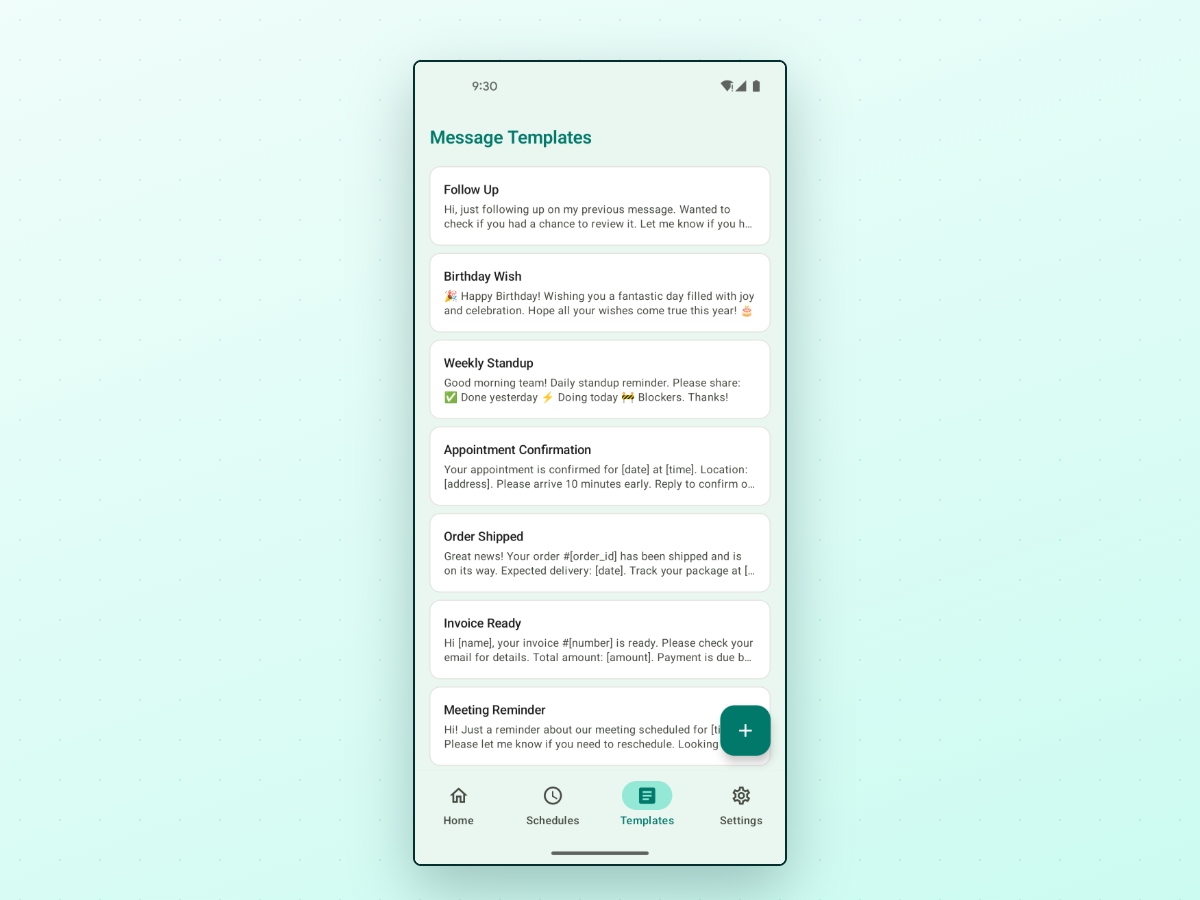
Whichever option you pick, having the message ready matters as much as the timing. A few starting points:
Appointment reminder (business):
Hi [name], a reminder that your appointment is tomorrow, [day] at [time]. Reply here if you need to reschedule. See you then!
Payment reminder (recurring, monthly):
Hi [name], friendly reminder that this month's invoice is due on [date]. Let me know if you have any questions.
Birthday message (one-time, scheduled for midnight):
Happy birthday, [name]! 🎉 Hope this year brings you everything you're working toward. Celebrate well!
Weekly team check-in (recurring):
Morning team — weekly check-in: please share your top priority for this week and anything blocking you.
One rule applies to all of these: only schedule messages to people who expect to hear from you. A scheduler is for sending the right message at the right time — not for messaging people who haven't agreed to the conversation. WhatsApp actively enforces its rules against unsolicited messaging, and no tool changes that.
Choosing between them
- Occasional, one-off timing needs → a calendar reminder is honestly enough.
- Handling inbound customer chat volume → WhatsApp Business built-ins (quick replies, away messages, labels).
- Messages that must go out at a specific time, or on a repeating schedule → a dedicated scheduling app, with eyes open about the accessibility and battery setup involved.
If you land in that third group and want to schedule WhatsApp or WhatsApp Business messages from Android, PlannedPing is one option built for exactly this workflow.