Manual vs Auto WhatsApp Scheduling: What Works Best?
Many WhatsApp scheduling apps on Android make you pick between confirming each send yourself and letting the app send hands-free. The trade-off is reliability versus attention — here's how to tell which one your situation actually needs.
Published July 28, 2026
You've decided to schedule a WhatsApp message instead of trusting yourself to remember. Good. But the first real decision comes right after that, and most guides skip it entirely: do you want the app to send the message for you, or to hand it to you to send?
Apps call these different things — auto-send, automatic mode, hands-free versus manual, confirm, reminder mode. The labels vary. The underlying choice doesn't, and it's the trade-off that shapes how your scheduling setup behaves on the morning something goes wrong.
This guide explains what each mode actually does on Android, what breaks in each, and how to pick.
First, what "automatic" really means on Android
This part matters, because a lot of writing on this topic blurs two very different things.
WhatsApp itself has no scheduling hook. There is no official way for another app to hand WhatsApp a message and a time and walk away. So when an Android app offers auto-send, the usual approach is driving the WhatsApp interface on your phone — opening the chat, placing the text, and tapping send, the same way your thumb would, just without your thumb. On Android the common way to do that is the accessibility service, which is why so many schedulers ask for it; check what a given app actually requests rather than assuming.
Accessibility services are a standard, documented part of Android. Their stated purpose is assisting people with disabilities — screen readers, switch access — and the capability they provide, letting one app observe and act within another, is what scheduling apps make use of. Worth knowing what you're granting, and worth knowing that the "auto" in auto-send therefore depends on your device cooperating at a specific moment in time.
Two things this is not:
- It is not server-side sending. With an on-device scheduler like this, nothing is queued in the cloud waiting to fire — if your phone can't do the work at 9 am, the send doesn't happen from somewhere else instead. Worth checking for any app you install, since it determines whether your messages and contacts leave the device at all.
- It is not the WhatsApp Business API. Most articles comparing "manual vs automated" WhatsApp messaging are written for businesses running the official Business API through a provider — bulk template sends to thousands of contacts, triggered by a CRM. That's a different product with its own approval process. If you're scheduling from a phone in your pocket, that comparison isn't about you.
What WhatsApp is doing about this
Worth stating plainly, because it affects how much you should invest in a setup: WhatsApp has been building native scheduled messages. WABetaInfo, which tracks WhatsApp betas, has reported on a feature for one-to-one and group chats with a section for managing scheduled messages before they send — and in its June 2026 write-ups described it as still in development and not yet available even to beta testers, with no announced release date.
So: real, worth keeping an eye on, and not something to plan around today. Reporting on unreleased features moves, so check the current state before you take my word for it — but treat any article claiming you can already long-press send to schedule as describing something that hasn't shipped.
Auto-send: hands-free, with conditions
Auto-send is the mode people want when they first go looking. Set the time, put the phone down, the message goes.
It's the right choice when:
- You genuinely won't be available at send time — a 7 am birthday message, a note timed to a recipient's morning in another time zone.
- The schedule repeats often enough that confirming every send would defeat the point. A daily standup nudge or a monthly payment reminder shouldn't need your attention twelve times a year.
- Missing the exact minute matters more than reviewing the message again.
What actually breaks it:
- Accessibility access has to stay granted. It's granted once and then easy to forget about — which is the problem, because a toggle you never think about is a toggle you won't notice has flipped. Android's permission behaviour changes between versions, manufacturer software adds its own restrictions, and a major update is a reasonable moment to re-check rather than assume. However it happens, a scheduler that lost its access last Tuesday may well not tell you at 9 am on Friday — some apps warn you on launch, but you have to open them to see it.
- Battery optimization. Several Android manufacturers aggressively restrict background apps. If the scheduler gets frozen overnight, it isn't awake to do anything at 8 am. On stock-ish Android this is often fine; on brands known for aggressive power management, exempting the app from battery optimization is frequently what separates working from not — and where to find that setting differs by brand.
- The device has to be on and available. Depending on the device and configuration, the screen may need to be unlocked for the automation to operate WhatsApp. Some people respond to this by removing their screen lock entirely. Don't. Trading your phone's lock screen for a scheduled message is a bad deal, and any guide suggesting it casually is not looking out for you.
- A changed UI can trip it. Because the mechanism is driving the WhatsApp interface, a WhatsApp update that moves things around can occasionally disrupt automation until the scheduler catches up.
None of this means auto-send doesn't work — how much of the above you'll actually hit depends heavily on your device and which app you choose. It means auto-send is a system with prerequisites, and when one disappears the failure tends to be a quiet one. Which brings us to the honest case for the other mode.
Manual confirm: reliable in a different way
In manual mode, the app does the scheduling and the remembering. At the scheduled time it notifies you and puts the message in front of you, ready. You press send.
That sounds like less. In one specific way it's more:
It usually fails loudly rather than silently. The typical failure of manual confirm is a notification you see and act on late. The typical failure of auto-send is nothing happening at all, discovered days later when someone asks why they never heard from you.
That's a tendency, not a guarantee. Notifications can be delayed, silenced by a Do Not Disturb schedule, buried under everything else that arrived, or suppressed by the same background restrictions that break auto-send — and a notification you never see is just as silent. The point is which way each mode leans: manual confirm gives you a chance to notice, auto-send doesn't. For anything where a missed send is worse than a late send, that lean matters.
It's the right choice when:
- The message is high-stakes — a client follow-up, anything involving money, anything you'd want to reread once before it's irreversible.
- The recipient or content might change between now and send time. Plans move; a message written Sunday for Wednesday might need a word changed.
- You're not comfortable granting accessibility access, or you're on a device where background restrictions are aggressive enough that you don't trust hands-free.
- You're new to scheduling apps and want to see the thing work before you trust it unattended. This is the underrated one — run manual for a week first.
Where it falls short: it needs you. If you swipe the notification away mid-meeting, the message doesn't go. For recurring schedules it reintroduces exactly the ongoing attention you were trying to eliminate.
A straight comparison
The specifics vary by app and by device — treat this as the shape of the trade-off, not a spec sheet for any particular scheduler.
| Auto-send | Manual confirm | |
|---|---|---|
| Needs you present at send time | No | Yes |
| Needs accessibility access | Usually | Typically not |
| Affected by battery optimization | Yes, often significantly | Less — it only needs to notify |
| Message reviewable before it goes | No | Yes |
| Typical failure | Nothing sends, and nothing tells you | You see the notification late and send late — unless you miss it too |
| Good fit for recurring schedules | Yes | Gets tedious |
| Good fit for high-stakes messages | Only once proven | Yes |
Two options that skip the choice entirely
Before you pick a mode, it's worth knowing that for a lot of people the honest answer is a third thing — no scheduling app at all.
A calendar or reminder app. Draft the message, leave it in the chat box or a note, and set a Google Calendar event or a reminder for the send time. When it fires, open the chat and press send. This is manual confirm with none of the moving parts: no new app, no accessibility grant, no battery exemption, and far less that can quietly stop working. It's also genuinely enough if your timing needs come up once or twice a month. What it can't do is repeat without repeatedly costing you attention — and it's still a notification, subject to the same Do Not Disturb schedules and background restrictions as any other.
WhatsApp Business built-in tools. If you're a small business, WhatsApp Business ships with first-party automation — fewer moving parts than a third-party scheduler, and nothing extra to grant. Away messages auto-reply outside your working hours, greeting messages handle first contacts, quick replies save canned answers you insert in a couple of keystrokes, and labels keep follow-ups findable. Be precise about what this is, though: away and greeting messages fire in response to someone messaging you, and quick replies and labels are things you use by hand while working through your chats. None of it sends an outbound message at a time you choose. If your real problem is answering inbound volume faster, these tools may be the whole solution and you can stop reading. If your problem is "this message goes out Tuesday at 9 am," they don't address it.
The manual-vs-auto question only becomes yours once you've ruled both of these out — because you need outbound timing, and you need it often enough that babysitting a reminder has stopped being reasonable.
How to actually decide
Ask two questions in order.
1. If this specific message didn't go out at all, how bad is that?
Bad enough to damage something — a client relationship, a payment, a deadline? Start with manual confirm, at least until you've watched the setup work reliably for a few weeks. "Happy birthday arriving three hours late" is survivable; "the invoice reminder never went and now it's overdue" is a different category.
2. How often does it repeat?
Once or twice a month, manual is no burden. Daily or several times a week, confirming each one erodes the entire reason you set it up, and auto-send earns its keep.
Most people who use scheduling seriously end up mixed: auto-send for the routine, low-stakes, high-frequency stuff, manual confirm for anything that matters. That's not indecision — it's matching the mode to the message.
A setup checklist for auto-send
If you go hands-free, spend ten minutes doing this once:
- Grant accessibility access to the scheduler, deliberately — read what you're granting and to whom. This is a real trust decision.
- Exempt the app from battery optimization. On many devices this is the difference between working and not.
- Check for a manufacturer-specific setting. Several Android brands have an extra "auto-start" or "protected app" toggle beyond standard battery optimization.
- Run one real test send to yourself, scheduled a few minutes out. Watch it happen. Don't let a birthday message be the first time you find out.
- Re-test after any major Android or WhatsApp update, and if you haven't opened the scheduler in a month, open it and confirm permissions are intact.
- Keep the phone charged and on at times you have sends scheduled. An overnight send needs an overnight device.
One rule that applies to both modes
Only schedule messages to people who expect to hear from you. Neither mode changes WhatsApp's rules about unsolicited messaging, and automating outreach at volume is a reliable way to get a number flagged or banned. Scheduling is for sending the right message to the right person at a better time — not for reaching people who never agreed to the conversation.
Where this leaves you
- Occasional, important messages → manual confirm. The review is worth more than the convenience.
- Frequent, routine, recurring messages → auto-send, set up properly and tested.
- Rarely, and you're around anyway → a calendar reminder. No app, no permissions, nothing to maintain.
- Mostly answering inbound customer messages → WhatsApp Business built-ins, not a scheduler.
- Not sure yet → start manual, switch once you've seen it work.
The useful thing is not being forced to choose once and live with it. Whatever app you use, check that it lets you set the mode per schedule rather than globally — the routine reminder and the client follow-up shouldn't have to share a setting.
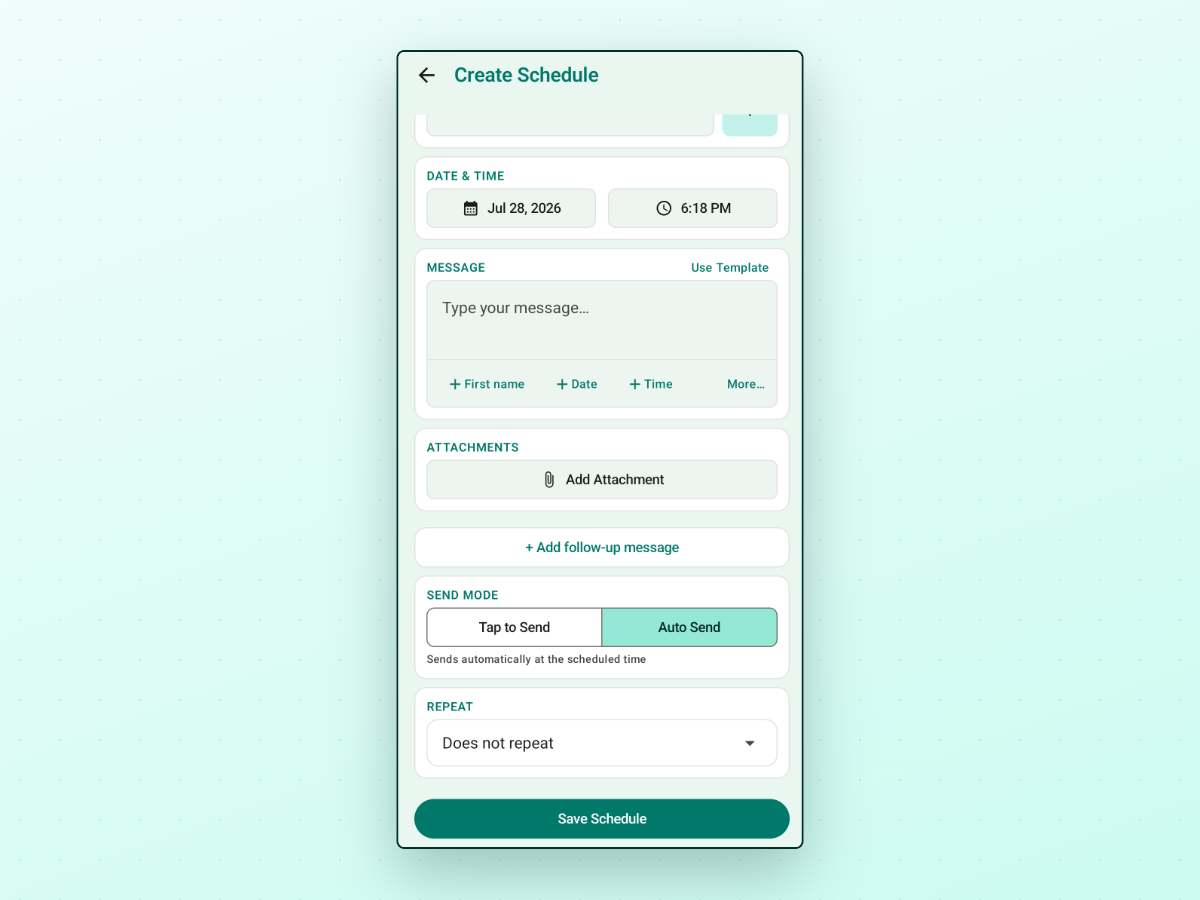
If you schedule from Android, PlannedPing is one app that works this way: the mode sits on the schedule itself, as Auto Send and Tap to Send — the screen shown above. What it supports beyond that is on the features page; check it against the list you just built.